"One size fits all" doesn't work for marketing—and it definitely doesn't work across borders.
A customer in France doesn't want an insert in English. A customer who lives 5 miles from your physical store would love to know they can visit. A customer in Germany expects different communication than one in Japan.
Location-based insert targeting makes your physical marketing as smart as your digital campaigns. This guide covers three location targeting approaches available in Insertr: shipping country, customer language, and distance from location.
Imagine you're a French customer who just ordered from a US-based brand. Your package arrives with:
Not exactly relevant.
Now imagine that same package contains:
Much better.
| Dimension | What It Captures | Use Case |
|---|---|---|
| Shipping Country | Where the order is going | Country-specific compliance, customs info, localized offers |
| Customer Language | What language they prefer | Translated materials, cultural relevance |
| Distance from Location | How close they are to a point | Local store visits, regional events, local pickup |
These aren't mutually exclusive. A French-speaking customer in Montreal is different from a French-speaking customer in Paris. You can combine conditions for precision targeting.
The Shipping Country rule type targets orders based on where they're being shipped.
How it works:
| Scenario | Country Condition | Insert |
|---|---|---|
| French market welcome | Country = FR | French thank you card, EU-specific info |
| UK compliance insert | Country = GB | UK returns policy card |
| Canadian promotion | Country = CA | CAD discount code, Canadian landing page |
| Australian market | Country = AU | AU-specific shipping expectations |
| European Union | Country IN (FR, DE, IT, ES, NL...) | GDPR-compliant materials |
| Exclude domestic | Country ≠ US | International welcome insert |
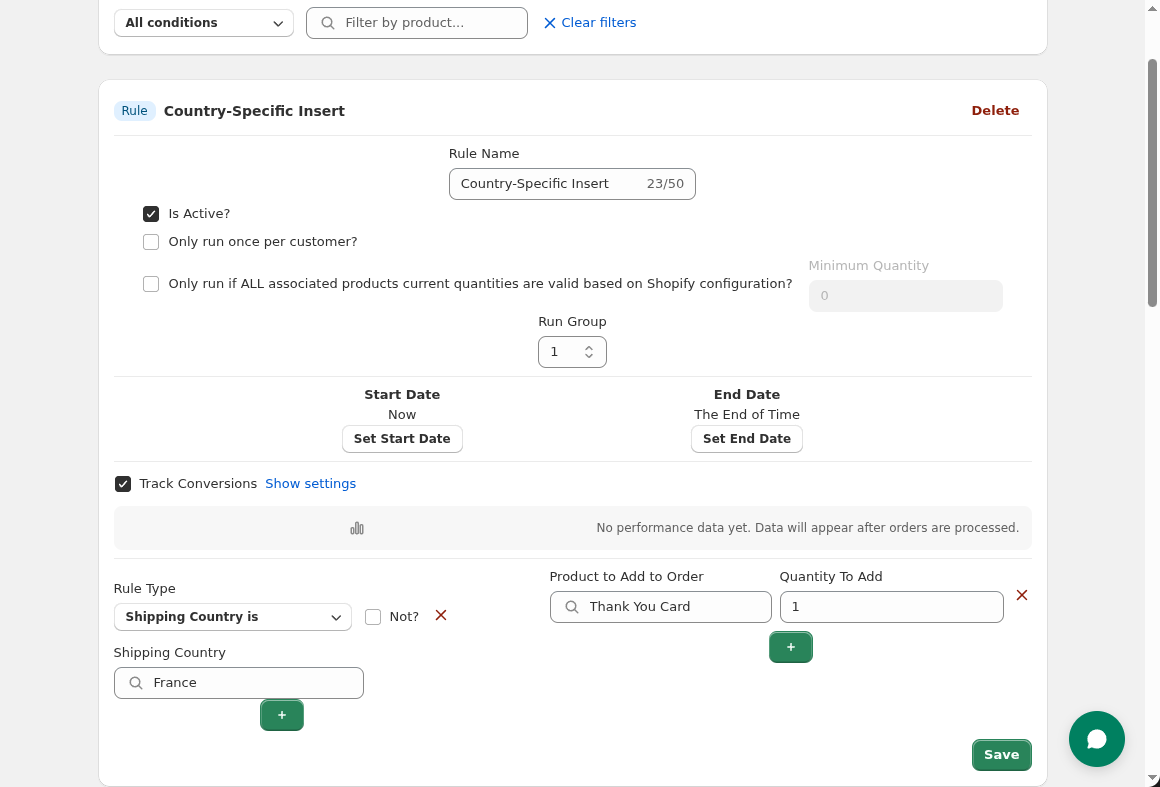 Configure a rule to add French-language inserts to orders shipping to France.
Scenario: US-based skincare brand selling to US, Canada, UK, and EU.
Rules:
| Rule Name | Condition | Insert |
|---|---|---|
| US Welcome | Country = US | English thank you card |
| Canada Welcome | Country = CA | English card + CAD pricing sheet |
| UK Welcome | Country = GB | English card + UK returns info |
| France Welcome | Country = FR | French thank you card |
| Germany Welcome | Country = DE | German thank you card |
| EU Other | Country IN (IT, ES, NL, BE, AT) | English card + EU customs info |
Cost-efficiency tip: If translated cards are expensive, you can group countries. EU customers might receive English cards with EU-specific information rather than full translations for every language.
The Customer Language rule type targets based on the customer's language preference—typically determined by their browser settings or the storefront language they used.
How it works:
| Scenario | Language Condition | Insert |
|---|---|---|
| French speakers | Language = fr | French materials |
| Spanish speakers | Language = es | Spanish materials |
| German speakers | Language = de | German materials |
| Japanese speakers | Language = ja | Japanese materials |
| Non-English | Language ≠ en | International welcome |
| Dimension | What It Captures | Example |
|---|---|---|
| Shipping Country | Physical destination | Order ships to Canada |
| Customer Language | Preferred language | Customer's browser is set to French |
These can overlap or differ:
Use country when the physical location matters (shipping info, compliance). Use language when communication language matters (translated cards).
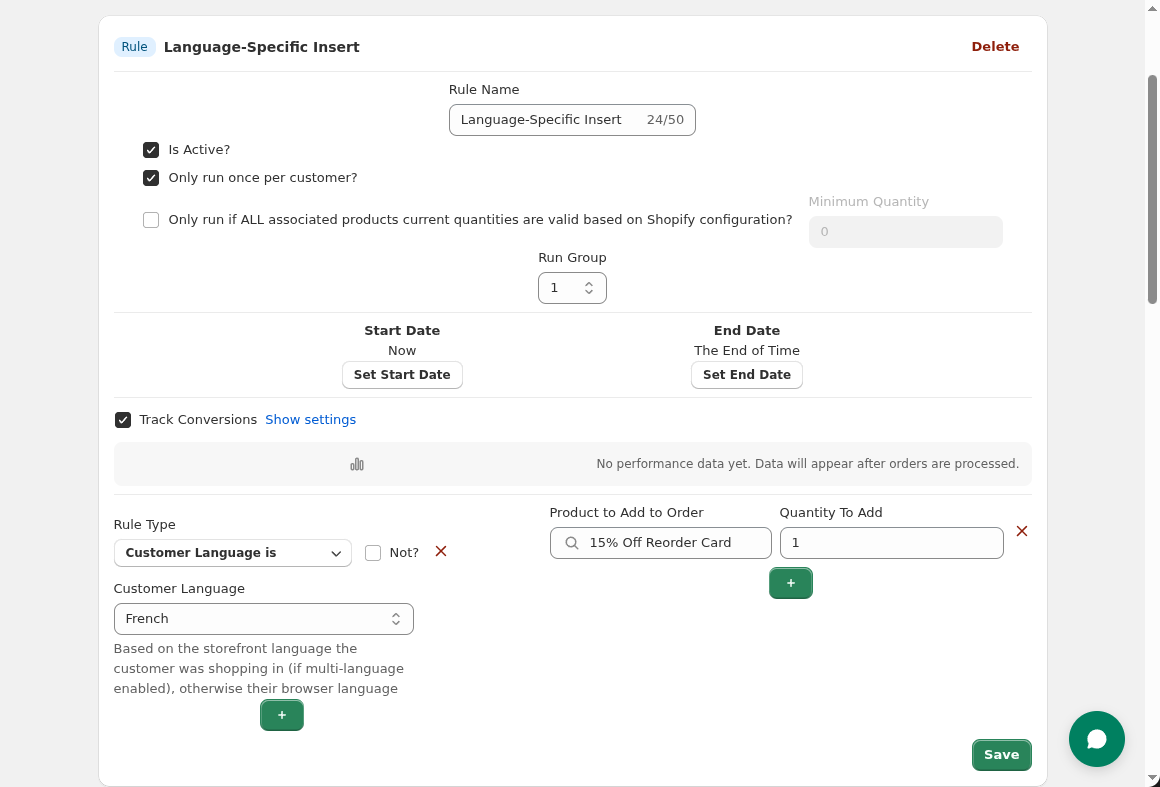 Target French-speaking customers with French-language inserts regardless of shipping destination.
Scenario: DTC brand with significant Spanish and French-speaking customers in the US.
Insight: Shipping country = US doesn't capture the diversity of US customers. Many prefer Spanish or French.
Rules:
| Rule Name | Condition | Insert |
|---|---|---|
| Spanish Welcome | Language = es | Spanish thank you card + Spanish product tips |
| French Welcome | Language = fr | French thank you card |
| English Default | Language = en | English thank you card |
Regional language codes: The system matches on the primary language. "es-MX" (Mexican Spanish) and "es-ES" (Spanish Spanish) both match "es". "fr-CA" (Canadian French) matches "fr".
The Distance from Location rule type targets customers based on how close their shipping address is to a specific point—typically your physical store, warehouse, or event location.
How it works:
| Scenario | Reference Point | Radius | Insert |
|---|---|---|---|
| Store visit invitation | Your retail store | 25 miles | "Visit us!" card with directions |
| Local event | Event venue | 50 miles | Event invitation |
| Warehouse local pickup | Your warehouse | 10 miles | Local pickup option card |
| Regional promotion | City center | 100 miles | Regional sale announcement |
| Franchise marketing | Franchise location | 15 miles | Local franchise info |
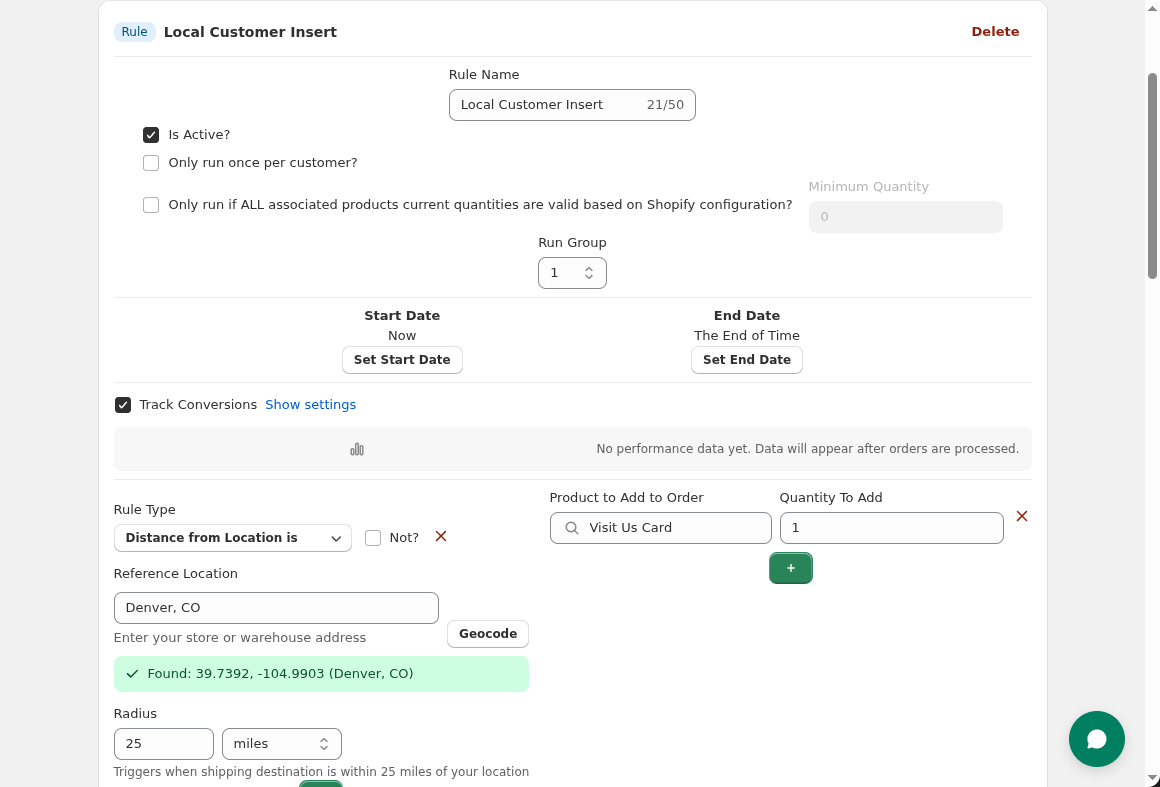 Invite local customers to visit your physical store with distance-based targeting.
Scenario: You have a flagship store in Denver and want to invite nearby customers to visit.
Rule:
Expected behavior: Customers with Denver-area shipping addresses receive the store visit invitation. Customers shipping to other locations don't.
Address accuracy: Distance is calculated from the shipping address. If the customer is shipping to a work address far from home, they might not actually be "local."
Radius tuning: Start broader (50 miles) and narrow down based on response. Urban areas might use smaller radii; rural areas larger.
Coordinate precision: The system geocodes addresses to coordinates. Major addresses work well; rural or new addresses may have less precision.
The real power comes from combining location with other conditions.
Goal: French-speaking first-time customers get a special French welcome.
Conditions:
Insert: Premium French welcome card with founder note in French.
Goal: Local VIP customers get an exclusive in-store invitation.
Conditions:
Insert: VIP in-store event invitation with exclusive access.
Goal: English-speaking Canadian customers (not French-Canadian).
Conditions:
Insert: English Canadian welcome with CAD pricing.
Goal: High-value orders to the EU get premium packaging and compliance info.
Conditions:
Insert: Premium thank you + EU customs and returns guide.
Goal: Drive foot traffic from online customers.
| Customer Location | Insert Strategy |
|---|---|
| Within 30 miles of store | Store visit invitation with exclusive in-store offer |
| Different city but same country | "Find a retailer near you" card |
| International | Online-only experience focus |
Goal: Localized experience for key markets.
| Market | Insert Strategy |
|---|---|
| Primary market (US) | English standard inserts |
| Secondary markets (UK, CA, AU) | English + regional info |
| Translated markets (FR, DE, ES) | Full native-language experience |
| Other international | English + international shipping info |
Goal: Serve diverse US customer base appropriately.
| Customer Profile | Insert Strategy |
|---|---|
| English speakers | English inserts |
| Spanish speakers | Spanish inserts (large US segment) |
| Other languages | English default |
Goal: Promote local pickup to nearby customers.
| Distance | Insert Strategy |
|---|---|
| < 15 miles | "Skip shipping—pick up free!" card |
| 15-50 miles | Standard shipping experience |
You don't need to translate for every country. Focus on markets with meaningful volume:
| Market Size | Localization Level |
|---|---|
| Primary (50%+ of orders) | Full localization |
| Secondary (10-20% each) | Translated key materials |
| Long tail (< 5% each) | English + international info |
Translation alone isn't localization. Consider:
Phase 1: Single language per major market
Phase 2: Combine language + country
Phase 3: Add distance for local targeting
Different markets may respond differently:
| Market | Conversion Rate | ROAS | Insight |
|---|---|---|---|
| US (English) | 8% | 12x | Baseline |
| France (French) | 12% | 18x | Localization matters! |
| UK (English) | 7% | 10x | Similar to US |
| Germany (German) | 14% | 22x | Invest more here |
Use per-rule analytics to see which localized inserts perform best.
Q: What if a customer's language doesn't match their country? A: Decide which matters more for your use case. For translated materials, use language. For compliance/shipping info, use country. Or combine both conditions.
Q: How accurate is distance calculation? A: Accurate within a few miles for most addresses. Rural or very new addresses may have less precise geocoding.
Q: Can I target by city or state instead of distance? A: Currently, use distance from a central point in that city/state. For example, target Los Angeles customers with a 50-mile radius from downtown LA.
Q: What about customers with multiple addresses? A: The rule evaluates the shipping address on each order. Same customer shipping to different addresses will be evaluated separately.
Q: Do I need translated products or just translated inserts? A: Inserts only. Create separate insert products for each language ("Thank You Card - French", "Thank You Card - German") and use language conditions to add the right one.
Generic inserts feel impersonal. Localized inserts feel like you understand your customer.
The technology to personalize by location exists—it's just been underused for physical marketing. With automated rules, you can deliver the right insert to the right customer based on where they are and what language they speak.
Your action plan:
Your competitors send the same thing to everyone. You send relevant materials that resonate. That's the difference.
Last updated: February 2026 | Author: Tom McGee, Founder of Insertr
About the Author: Tom McGee is the founder of Insertr and a former Senior Software Engineer at both Shopify and ShipBob. At ShipBob, he worked with brands shipping globally and saw firsthand how localization—done well—improves customer experience and retention.