Here's a frustrating reality: most 3PLs can't (or won't) add custom inserts based on order rules.
Ask them to "add a thank you card to first orders" and you'll get one of these responses:
None of these are good options. Custom logic is expensive. Per-order fees destroy ROI. API integrations are a maintenance burden.
But there's a simple workaround that works with any 3PL: make your inserts regular line items.
I learned this while building warehouse management software at ShipBob. Warehouses follow packing slips. If something is on the slip, it gets picked. If it's not, it doesn't. That's the logic.
So the solution is obvious: put your inserts on the packing slip.
Here's how it works:
The 3PL doesn't need to know about your marketing rules. They don't need custom logic. They just pick and pack what's on the order.
Customer places order
        ↓
Order created in Shopify
        ↓
Insertr evaluates rules → Adds insert as $0 line item
        ↓
Order syncs to 3PL/WMS
        ↓
Warehouse sees: [Product A, Product B, Thank You Card (SKU: THANK-YOU)]
        ↓
Picker grabs all items including insert
        ↓
Packer boxes everything together
        ↓
Customer receives order with insert inside
No special integration. No warehouse training. No per-order fees.
I spent nearly 4 years at ShipBob building warehouse management software for inbound and packing flows. Here's what I learned:
Warehouses optimize for simplicity. The fewer exceptions, the fewer errors. When inserts are just another SKU, they flow through the standard process.
Pick lists are sacred. Pickers follow the list. They don't make decisions about what should or shouldn't be in the box. If it's on the list, it gets picked.
Special handling is expensive. Any deviation from the standard flow requires training, QA, and per-order decisions. That's why 3PLs charge extra for it.
By making inserts line items, you're not asking for special handling. You're just sending orders with more items.
This approach works with any fulfillment system that:
That's basically everyone:
| 3PL | Works? | Notes |
|---|---|---|
| ShipBob | Yes | Native Shopify integration |
| ShipHero | Yes | Native Shopify integration |
| Deliverr | Yes | Native Shopify integration |
| Red Stag | Yes | Native Shopify integration |
| Flexport | Yes | Native Shopify integration |
| ShipMonk | Yes | Native Shopify integration |
| Custom WMS | Yes | If it reads Shopify orders |
| Self-fulfillment | Yes | You'll see inserts on your packing slips |
For each insert type, create a product:
Example: Thank You Card
 The insert appears as a line item with a clear SKU that your warehouse can identify.
Important: Use clear, recognizable SKUs. "THANK-YOU-CARD" is better than "INS-001". Warehouse staff will see these on pick lists.
Treat insert inventory like any other product:
Pro tip: Keep 60-90 days of insert inventory on hand. Running out stops your campaigns.
Create rules that define when inserts should be added:
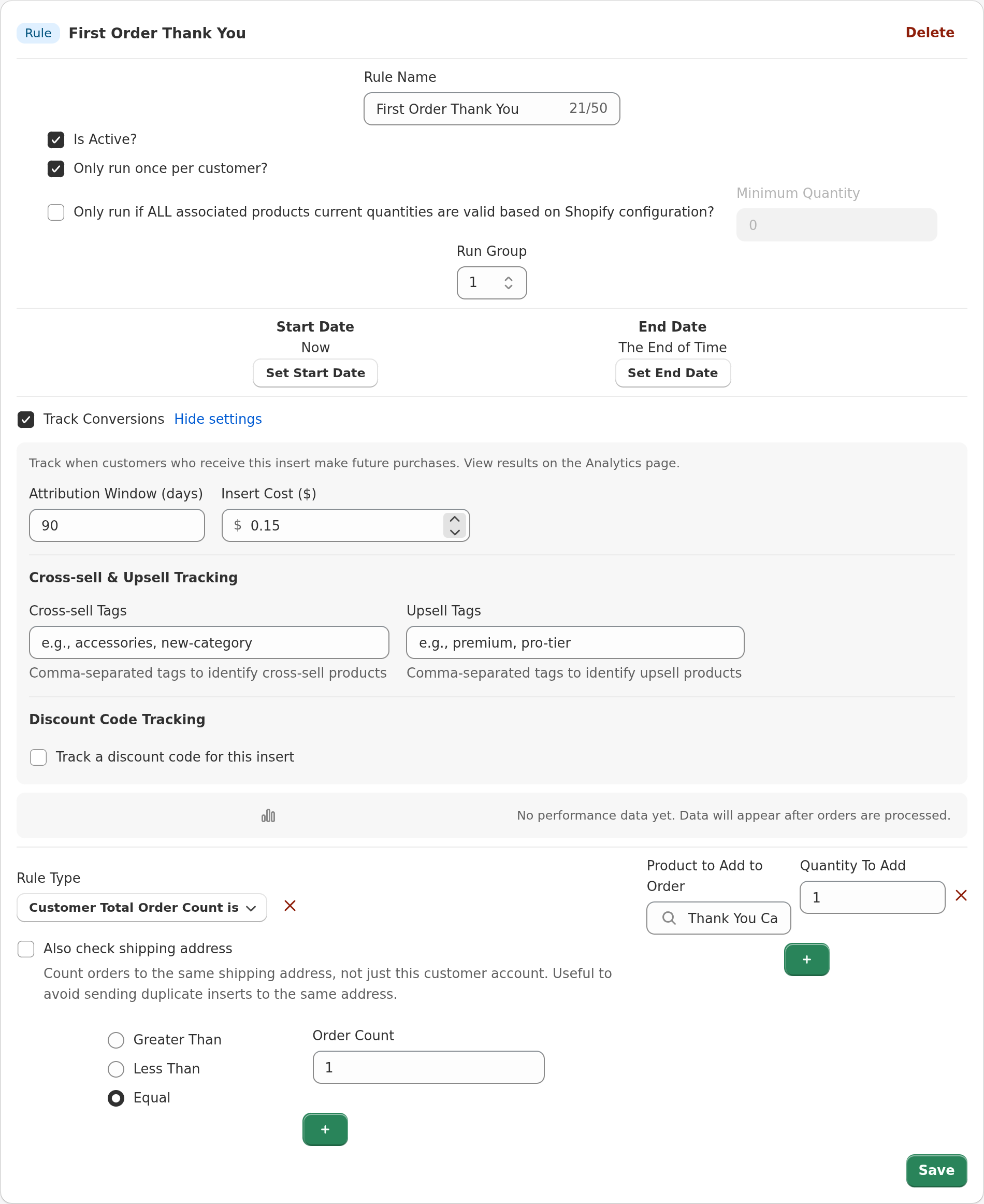 Configure rules that automatically add inserts based on order criteria.
Example Rules:
| Rule Name | Conditions | Insert |
|---|---|---|
| First Order Thank You | Order Count = 1 | Thank You Card |
| VIP Gift | Total Spend > $500 | Premium Gift |
| Coffee Cross-Sell | Product Tag = "tea", No coffee history | Coffee Sample |
| French Insert | Shipping Country = France | French Promo Card |
Once confirmed, your rules run automatically on all matching orders.
Here's what brands are doing with integration-free inserts:
Just because inserts are easy to add doesn't mean you should add them blindly. Measure the impact.
Enable conversion tracking in Insertr to see:
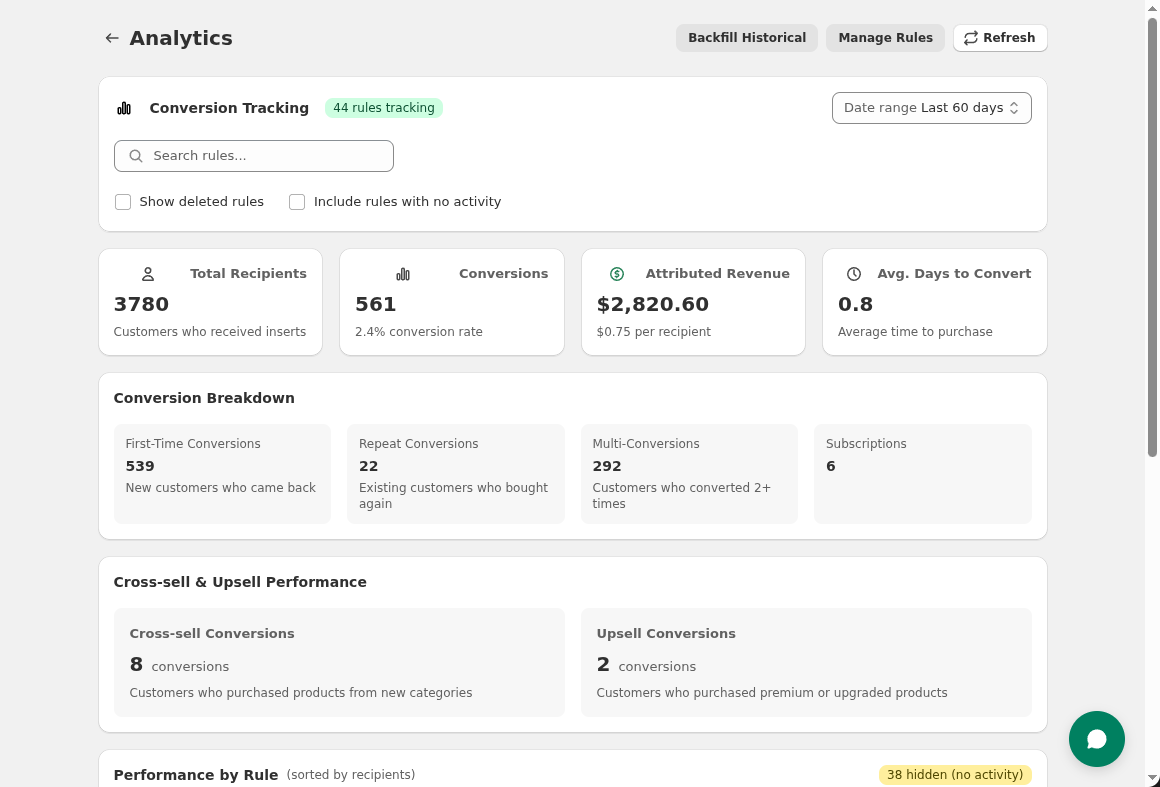 Calculate return on your insert investment.
Insert cost isn't just the product. Factor in:
| Cost Component | Typical Range |
|---|---|
| Insert production | $0.10 - $2.00 |
| Fulfillment (pick fee) | $0.25 - $0.50 |
| Packaging (if larger box needed) | $0.00 - $0.50 |
| Total per insert | $0.35 - $3.00 |
Example ROI calculation:
Q: Will my 3PL charge extra for picking inserts? A: Most 3PLs charge per-pick fees regardless of what the item is. A thank you card pick costs the same as a t-shirt pick. Check your contract, but there's usually no "insert surcharge" for line items.
Q: What if I want different inserts for different customers? A: Create multiple insert products and multiple rules. Insertr evaluates all rules and adds all qualifying inserts. The 3PL just sees multiple line items.
Q: What about insert placement (inside vs. outside the product)? A: This is where you may need 3PL coordination. Most warehouses default to placing all items in the same box/bag. If you need specific placement (inside a product box, on top of items), you'll need to arrange that separately.
Q: Can I do seasonal inserts? A: Yes. Create seasonal insert products, set rule dates, and swap inventory at your warehouse as needed.
Q: What happens if I run out of insert inventory? A: If tracking inventory, the insert won't be added to orders when stock hits zero. Set up inventory alerts in Shopify to prevent this.
Q: Will this work with custom packaging? A: Yes. The insert is just another item in the order. Whether you use poly mailers, boxes, or custom packaging, the insert gets included.
Insert not appearing in 3PL queue:
Warehouse not picking inserts:
Insert added to wrong orders:
From conversations with Insertr customers:
"We asked our 3PL about custom inserts. They quoted $1.50 per order for special handling. With 10,000 orders per month, that's $15,000/month just for handling. Insertr is $99/month and the inserts are just line items." — DTC skincare brand
"Our previous setup required us to email the warehouse every time we wanted to change an insert. Now we just update a rule and it takes effect immediately." — Subscription box company
"We tested with ShipBob and ShipHero. Same approach worked with both. No integration work on either side." — Multi-brand e-commerce operator
Ready to add inserts without the integration headache?
Your warehouse doesn't need to change anything. They just pick what's on the order.
Last updated: January 2026 | Author: Tom McGee, Founder of Insertr
About the Author: Tom McGee is the founder of Insertr and a former Senior Software Engineer at both Shopify and ShipBob. At ShipBob, he spent nearly 4 years building warehouse management software with emphasis on inbound/packing flows—giving him firsthand experience with how 3PLs handle (and struggle with) custom insert requests.